App guide
Magic Lantern
Magic Lantern is the Bluetooth app for our addressable RGBIC controllers: strips and pixel strings on which each LED is driven independently, so colour can run, chase and spread along the length. It sets colour and brightness, runs categorised moving effects, follows music or a microphone, holds on and off schedules, and carries the two settings addressable lighting depends on, Pixels and Modify Pin Sequence. The app is free.
Key takeaways
- Magic Lantern covers 12 of our 40 categories: 3-, 4- and 5-channel RGBIC strips, multi-output RGBIC, pixel strings, curtain lights and firework lights.
- One protocol per app: a plain RGB strip, one colour at a time, never lists here. It needs LotusLamp X or Lotus Lantern.
- The App Store title is Magic-Lantern and the Google Play title is Magic Lantern. Both are free, with no in-app purchases.
- Pixels must match the addressable point count, or effects compress into the first section or run off the end.
- Modify Pin Sequence is saved on the controller. Pair within a metre or two; most controllers hold one phone at a time.
Where to get the app
Install Magic Lantern from Google Play on Android or from the App Store on iPhone and iPad. The App Store listing carries the title Magic-Lantern, with a hyphen, and requires iOS 12 or later; the Google Play listing is titled Magic Lantern. Both show the app as free, and Google Play lists no in-app purchases and no advertising. An app that asks for payment before it will control a light is not ours, whatever its name.
The store descriptions define the app as a controller for colour RGBIC LED strips and list the same functions as the interface sections that follow: dimming and colour grading, dynamic modes and scenes, music rhythm from several sound sources with a choice of rhythm styles, on and off timers, pixel setting and line-sequence setting. The controllers the app can drive are fixed by the protocol, not by the store.
Compatible lights and controllers
Magic Lantern drives the controllers in the 12 product categories in the table, over Bluetooth Low Energy directly from the phone: no router, no account and no cloud step. Every category is addressable, meaning a control chip sits in the strip or string itself and each LED can hold its own colour, which is what a running rainbow or a block of colour travelling along the run requires. A strip on which every LED shows one colour at a time has nothing to address and belongs to LotusLamp X or Lotus Lantern; no app setting turns it into a chase. A card, QR code or box that names an app overrides the table, and the complete 40-category map is in which app controls your light.
| Category | Control type | Notes |
|---|---|---|
| 3-Channel RGBIC | 3-channel addressable | Red + green + blue, each LED controlled independently |
| 4-Channel RGBIC | RGBIC + white or warm light | Independently controlled colour ring plus a fixed white or warm ring |
| 5-Channel RGBIC | RGBIC + tunable white | Colour ring plus a ring with an adjustable warm-to-cool ratio |
| Multi-Output RGBIC | One-to-many | Synchronised RGBIC strips from one controller; see the pixel controller platform |
| RGBIC + RGB | Hybrid colour | RGBIC and RGB outputs on one controller |
| 2-Wire Pixel Light | 2-wire pixel | Addressable effects on a two-wire string |
| Curtain Light | Curtain structure | Decorative modes; variants in curtain light sizing |
| Curtain Light — Fast | Fast refresh | Curtain structure |
| Curtain Light — Linked Screen | Linked screen | Multi-panel sync |
| Curtain — Linked Screen Fast | Fast linking | Screen sync |
| Firework Light | Central hub + radial bars | Firework form |
| Firework + Flagpole Light | Radial bars + pole | Outdoor decoration |
Device list
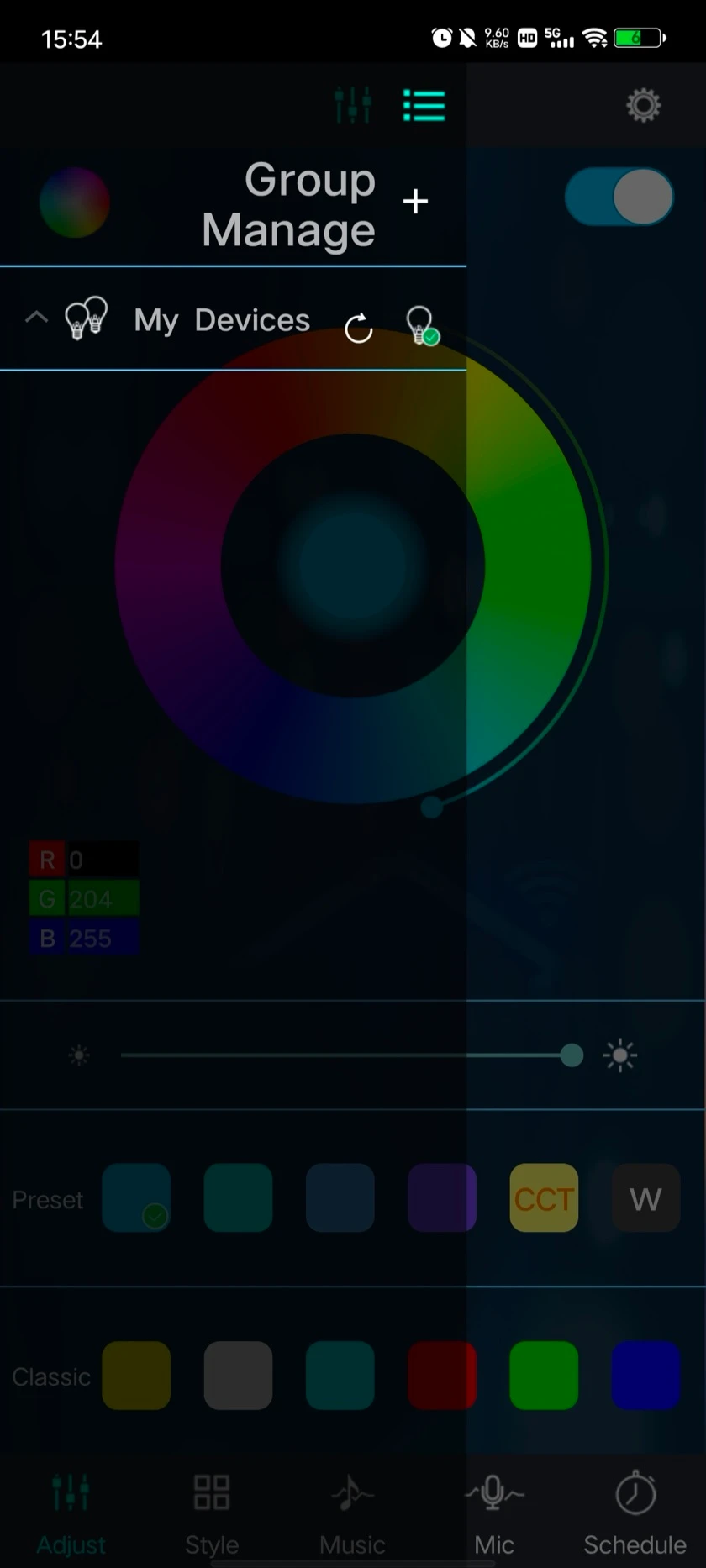
The list button at the top of the control screen opens My Devices. Each controller the app has found is listed by name with its Bluetooth address, and the link icon beside it shows whether it is connected. Discovered controllers are added to the list automatically; nothing has to be typed in.
- Power the light on and open the list. A controller that is powered, in range and built for this protocol appears within a few seconds.
- Tap the link icon beside a device to connect or disconnect it. The icon changes state once the link is made.
- Use Group Manage and the plus control to create a group, then assign devices to it. One colour or mode change then reaches every member.
An empty list with the light powered is the signature of the wrong app or a denied Bluetooth permission, not of a dead light. The common-problems table covers both.
Colour and brightness
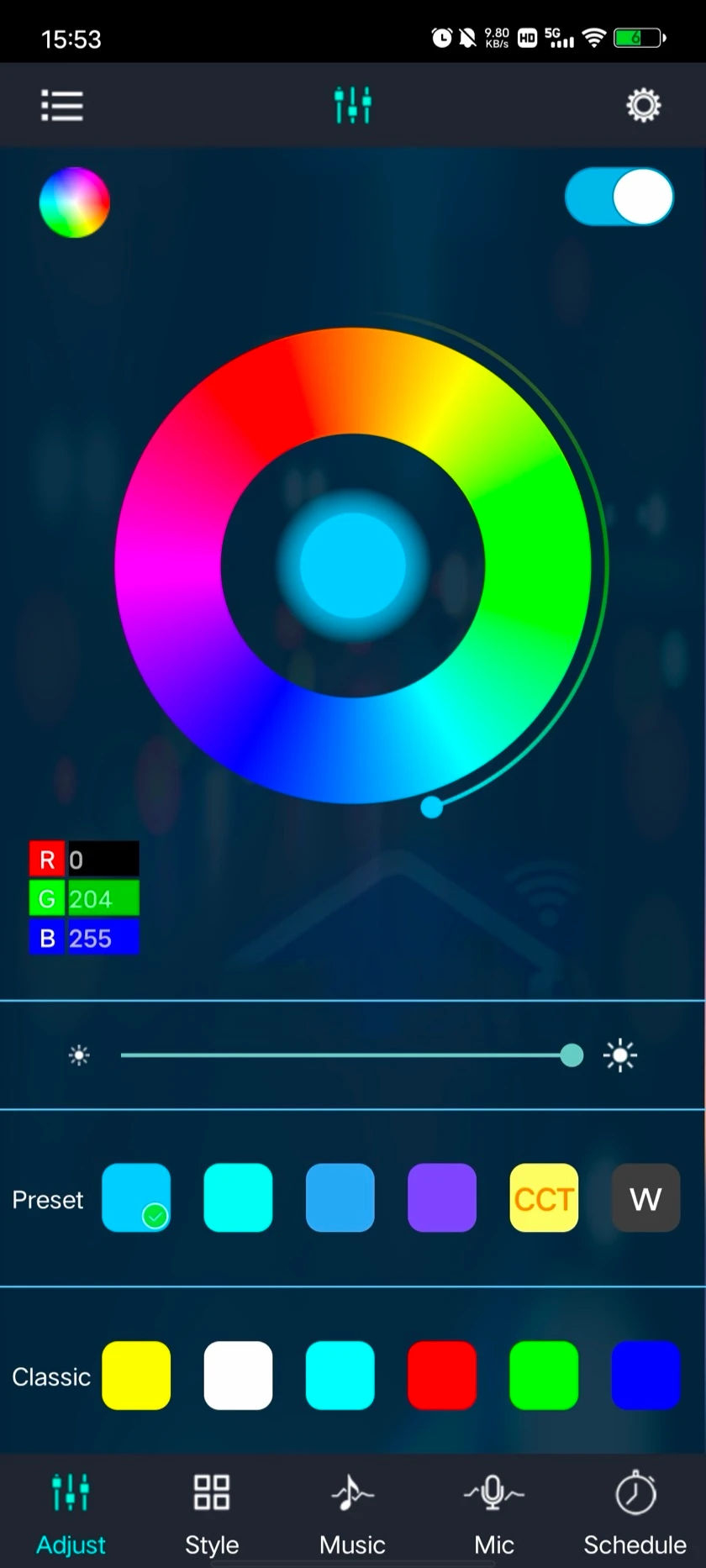
The Adjust tab holds the power switch, the colour ring, the numeric R, G and B values, the brightness slider and two rows of swatches. A colour chosen here is applied to every addressable point at once: the whole run in one steady colour, which is the state to use for the red test described under Settings.
- Switch the light on with the toggle at the top right of the Adjust tab.
- Choose the ring type with the small colour circle at the top left: coloured light, cool-and-warm light, or cold light, according to what the strip carries.
- Drag round the ring, or tap a swatch, to set the colour. The R, G and B values update as the marker moves.
- Tap the R, G or B value to enter a colour numerically. Two strips set to the same three numbers match; two set by eye rarely do.
- Move the brightness slider to set the output.
Dynamic modes
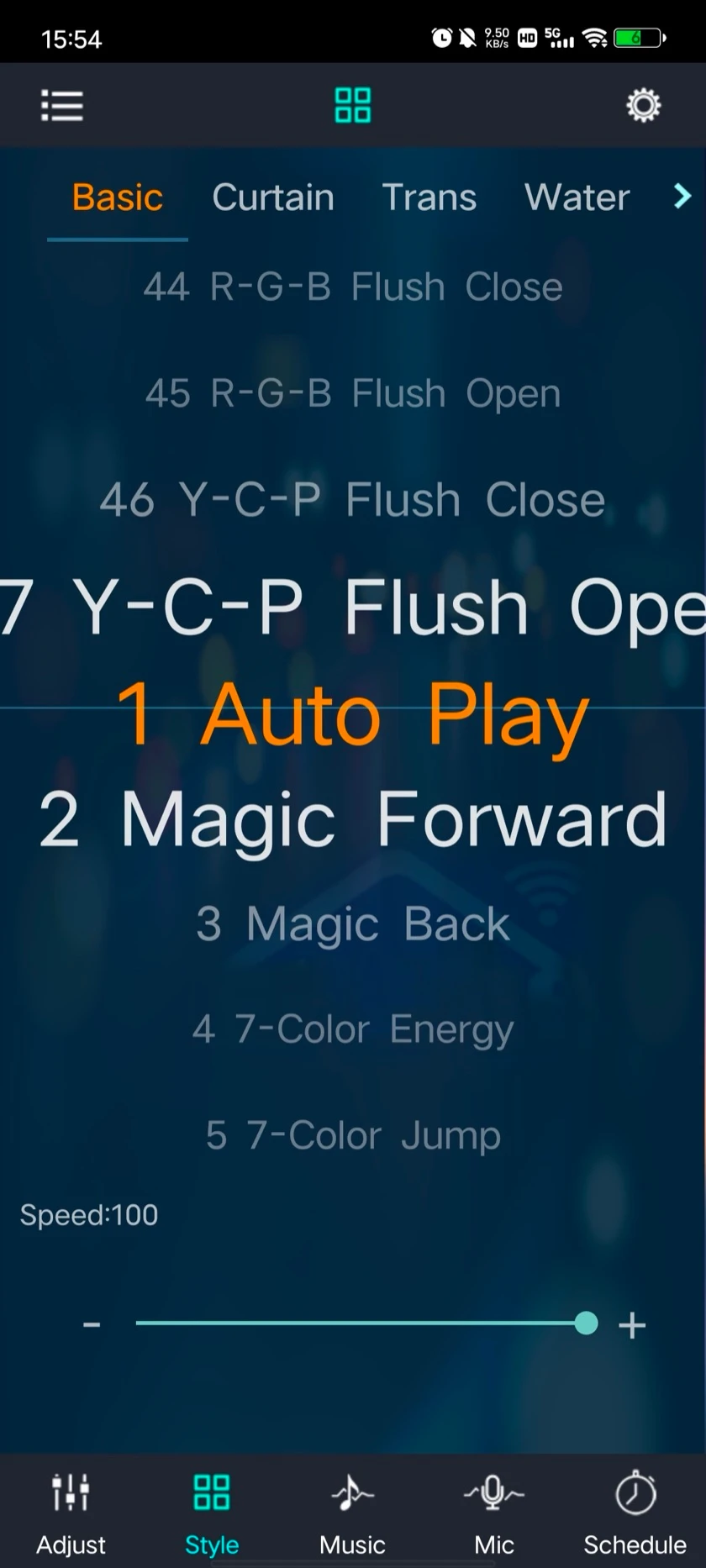
The Style tab sorts the effects into category tabs, Basic, Curtain, Trans, Water and more, each holding a numbered list. Basic alone runs from 1 Auto Play through Magic Forward, Magic Back, 7-Color Energy and 7-Color Jump to the flush and curtain patterns numbered in the forties. Because each LED is addressed separately, the effects move along the strip: a colour block travelling from one end to the other, a rainbow spread across the length, a curtain closing and opening.
- Open the Style tab and choose a category tab. The Curtain tab holds patterns drawn for curtain lights; the Water tab holds flow patterns.
- Swipe the list vertically to select a mode. The highlighted line is the active one.
- Set Speed, shown as a value up to 100, for the rate at which the pattern advances.
A pattern that stops part-way along the run, or vanishes off the end, is not a mode fault: the Pixels setting does not match the strip.
Music
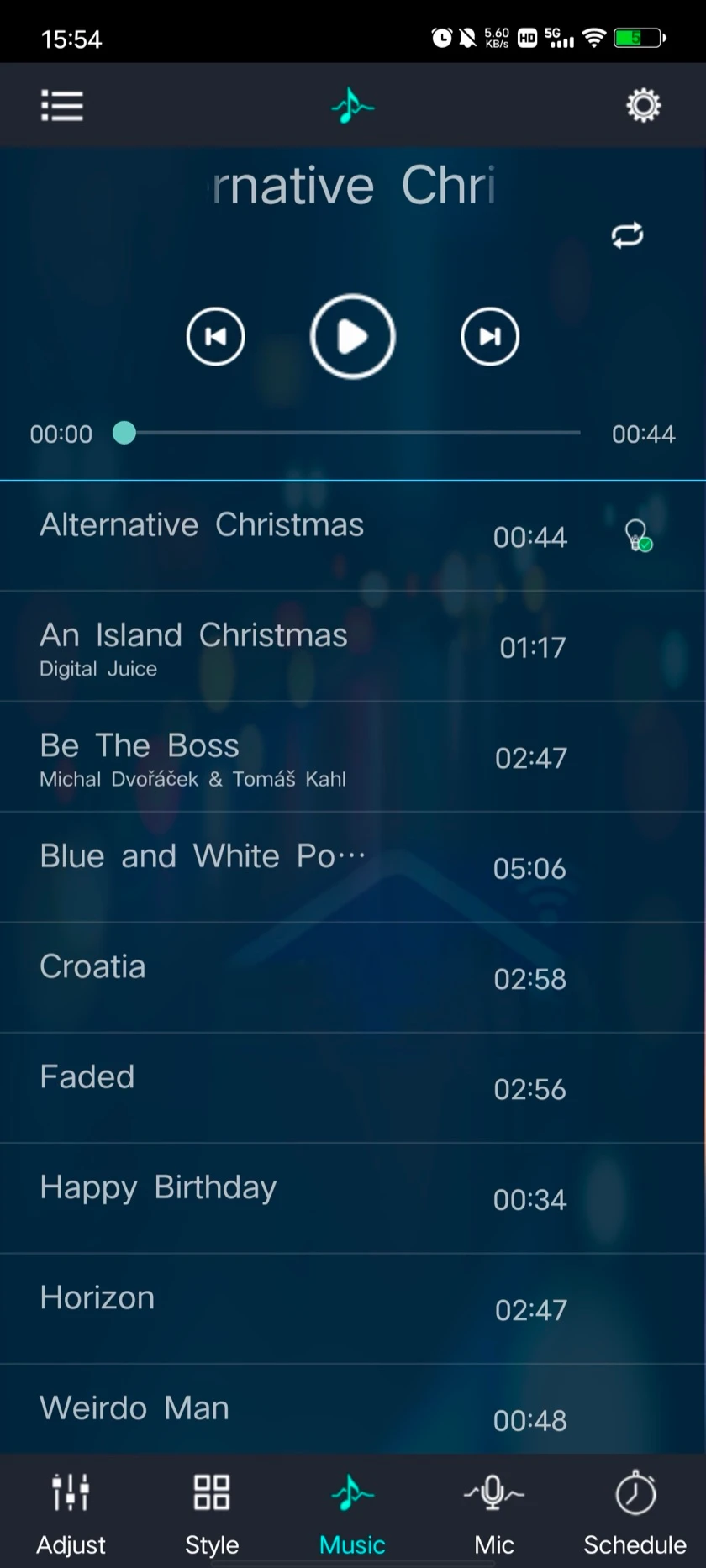
The Music tab plays audio files stored on the phone and drives the light from their rhythm. The phone does the listening, so the Bluetooth connection has to stay up and the app has to stay on the Music tab while a track plays.
- Open the Music tab and choose a track from the list.
- Use play or pause to control the current track.
- Use previous and next to change tracks.
- Choose a playback mode and follow the track on the progress bar.
Streaming apps and system audio are not captured; Phone MIC is the source for those. The three sound sources and what each is suited to are compared in music sync modes.
Phone microphone
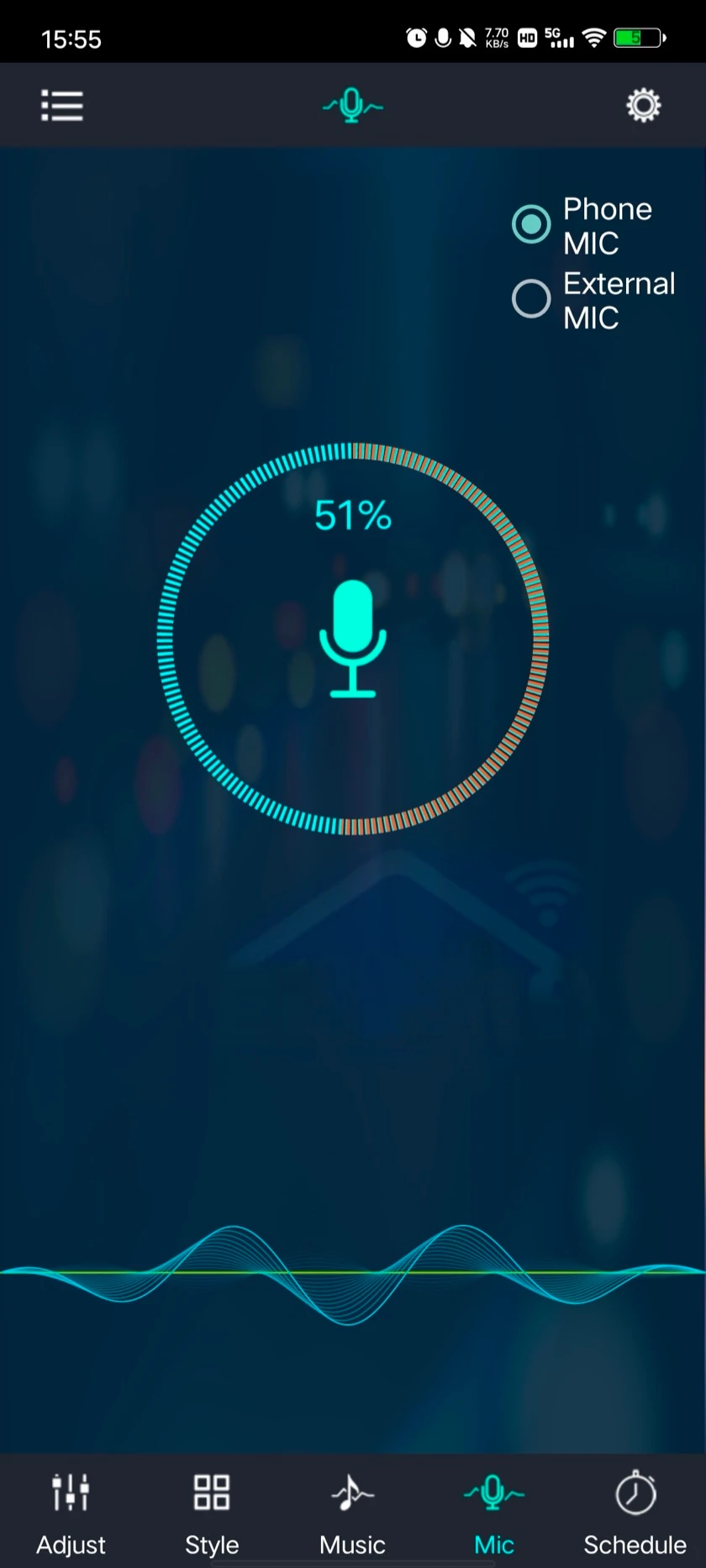
On the Mic tab, Phone MIC uses the phone's own microphone. The ring shows the current level as a percentage and the trace along the bottom shows the waveform; the light's rhythm follows that level.
- Open the Mic tab and select Phone MIC.
- Allow microphone access when the phone asks for it. The mode uses the phone's microphone and nothing else.
- Place the phone where the sound is: beside the speaker for music, on the table for a room. The level ring confirms what the phone is hearing.
Device microphone
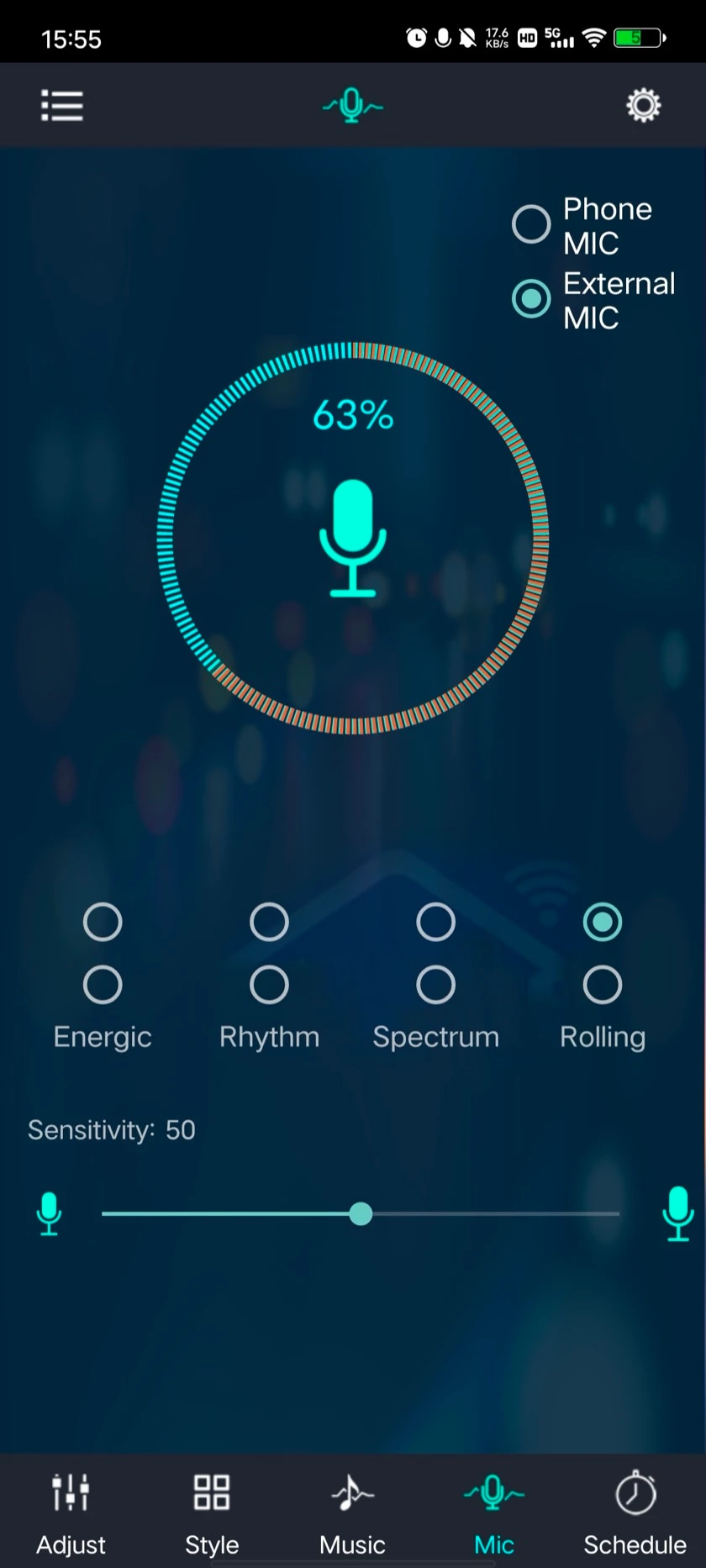
External MIC is the microphone built into the controller; the app calls it external because it sits outside the phone. Sound is picked up at the light, so the phone's position no longer matters. Four rhythm styles are offered, Energic, Rhythm, Spectrum and Rolling, each in two variants, and Sensitivity sets how much sound is needed to drive a change. On an addressable strip the Spectrum and Rolling styles use the length of the run: level maps to how far along the strip the light reaches, not only to how bright it is.
- On the Mic tab, select External MIC. The option only responds on a controller that has a microphone fitted.
- Choose a rhythm style and one of its two variants.
- Move the Sensitivity slider (the capture shows 50) until quiet passages leave the light steady and beats register.
- Select Phone MIC to return to phone-side pickup.
Scheduled on and off
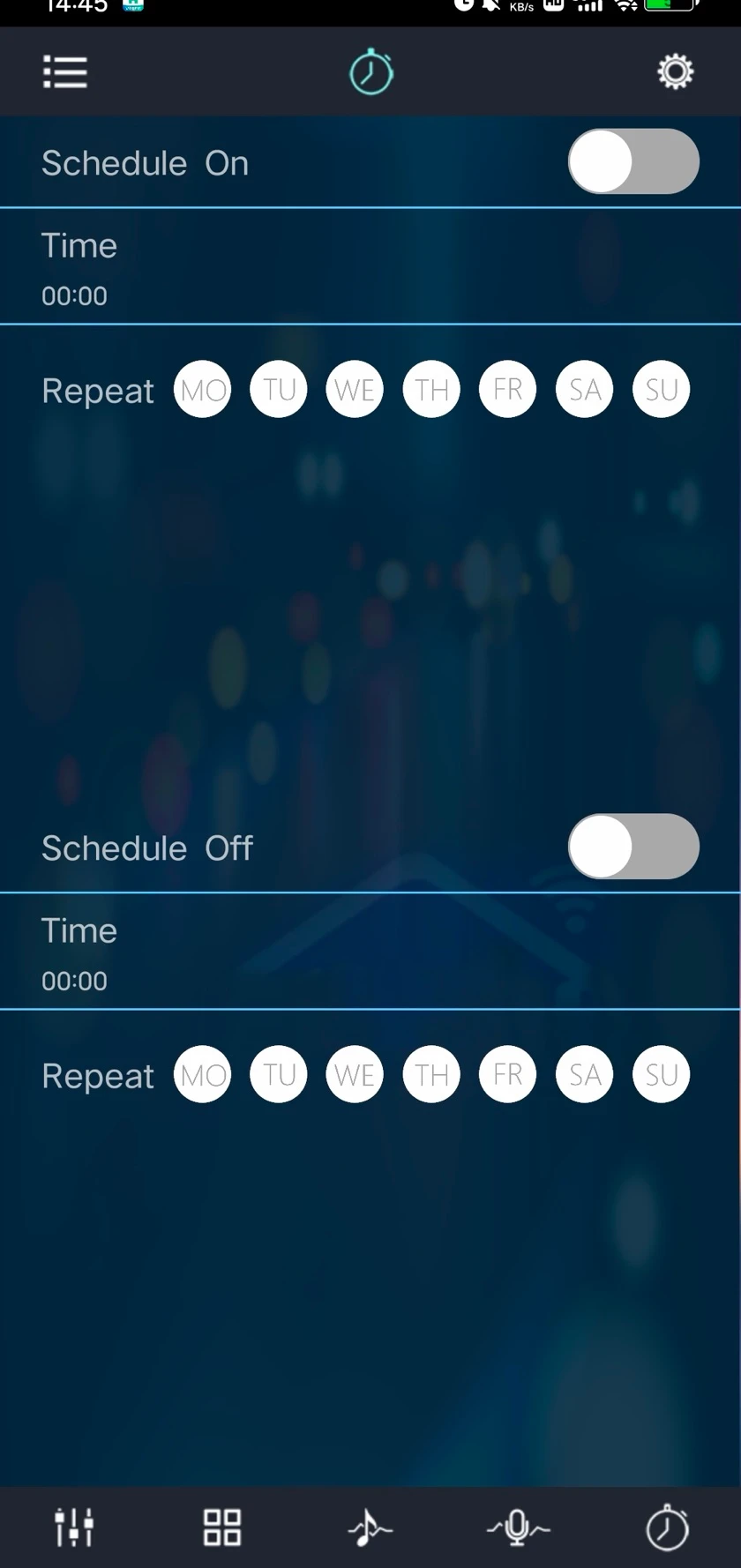
The Schedule tab holds two independent timers, Schedule On and Schedule Off, each with its own time and a Repeat row of weekdays from MO to SU.
- Open the Schedule tab and choose Schedule On or Schedule Off.
- Set the time.
- Tap the weekdays on which the timer should repeat. More than one can be selected.
- Enable the toggle for that timer. The other timer is set separately.
Settings
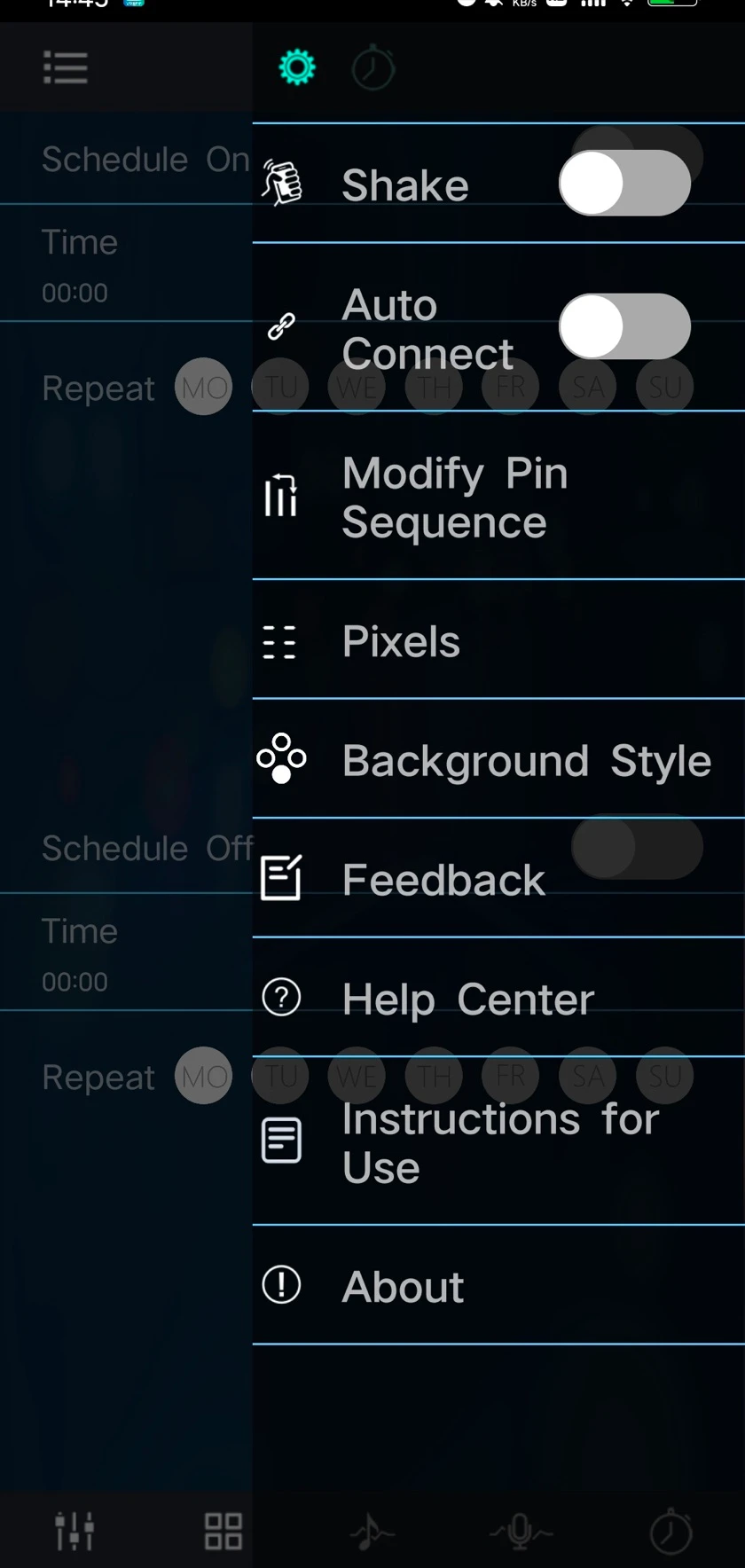
The gear icon at the top right opens the settings pop-up. It holds the two settings that decide whether an addressable strip looks right, Pixels and Modify Pin Sequence, and both are easy to miss because they are not on the main control screen.
- Shake: change colour by shaking the phone.
- Auto Connect: connect automatically to controllers in the list.
- Modify Pin Sequence: remap red, green and blue to the strip's physical pins. The setting is stored on the controller.
- Pixels: the number of addressable points on the strip.
- Background Style: change the app background.
- Feedback, Help Center, Instructions for Use: submit a problem, open the help page or read the built-in manual.
- About: the app version.
Setting the pixel count
The controller spreads every moving effect across the number of points it has been told about. Set too low, an effect compresses into the first section of the run while the rest sits idle or lags; set too high, the effect appears to run past the end of the strip and disappear. The count to enter is the number of addressable points on the connected run, which for a strip cut from a reel is the number of LEDs, or the number of chips when several LEDs share one chip.
- Connect to the light and open the settings pop-up.
- Choose Pixels and enter the count for the run as installed, including any extension.
- Run a chase from the Style tab. The pattern should reach the last LED and no further.
Correcting the line sequence
Red comes out green when the strip and the controller disagree about which wire carries which colour. White looks correct whatever the order, which is why the fault hides. The test is to set pure red at full saturation on the Adjust tab: green or blue back means the order is swapped; nothing at all means that channel is not being driven and the connector is the problem.
- Connect to the light and confirm it responds to a brightness change. The change is saved to the controller, so a live connection is needed.
- Open the settings pop-up and choose Modify Pin Sequence.
- Assign red, green and blue to the three signal pins in the same left-to-right order as the header on the strip.
- Save. The setting survives closing the app and unplugging the light.
The full walkthrough, and the faults that look like channel order but are not, is in wrong colours and line sequence.
Common problems
| Symptom | Cause | Fix |
|---|---|---|
| Device list stays empty, no error | Wrong app for the controller, or Bluetooth / nearby-devices permission denied | Confirm the app in which app controls your light; grant the permission in the phone's settings for the app, not inside the app |
| Light appears, then vanishes; or connects and drops within seconds | Another phone that paired before has reclaimed it, or the phone is too far for the first handshake | Close the app on the other phone; pair within a metre or two, then move away |
| Chase effect squashed into the first section, or running off the end | Pixels does not match the strip | Set Pixels to the number of addressable points on the run |
| Connects and brightness works, but colours are wrong | Channel order: strip and controller disagree about which wire is which | Modify Pin Sequence in the settings pop-up; the setting is stored on the controller |
| Connects but nothing responds | The controller is not driving the strip | Check the connector between controller and light |
The permission location for each phone platform, the full failure table and the reset pattern are in pairing a light for the first time.
Privacy
Magic Lantern asks for Bluetooth permission to scan for controllers (on Android 6 to 11 the system routes that request through the location permission; the app does not read your position) and for microphone permission only when Phone MIC is selected; the Google Play data-safety section states that no data is shared with third parties. The privacy policy covers the website, and the store listings carry the app's own data-safety details.
Questions about a specific light of ours? Contact us.
Sources: Google Play listing, Magic Lantern; App Store listing, Magic-Lantern.