App guide
LightsPlay
LightsPlay is the control app for our music-led lights and running-water controllers. The home screen is a grid of quick panels, one per light or group, and each panel stores up to six colours, six brightness levels and six effect shortcuts, so a saved setting is one tap. Rhythm can follow a track from the phone's library, the phone's microphone or the microphone built into the controller. The app is free.
Key takeaways
- Install only from the Google Play or App Store listing. The app is free, with no paid tier or unlock fee.
- LightsPlay is the app for the Running Water Light category. A strip showing one colour at a time belongs to LotusLamp X; a chasing strip to Magic Lantern.
- Each quick panel holds up to six colour, six brightness and six combined effect shortcuts.
- Music mode plays files from the phone's own library. Streamed audio needs a microphone mode.
- An empty device list is the wrong app or a denied Bluetooth permission far more often than a faulty light.
Official store listings
LightsPlay is published on Google Play under the package name com.baipaiproduct.lightsplay and on the App Store as LightsPlay; the Chinese App Store lists it as 宝莲灯酷玩. Both listings are free, and the iOS build requires iOS 12.0 or later. The store descriptions name RGB strips, RGBIC strips, bulbs and in-vehicle RGB lights, with three rhythm sources: a music file on the phone, the phone's microphone, or the microphone on the device.
A listing can show a different local title. Confirm the developer name and the app icon before installing. An app that asks for payment to control the light is not ours, whatever it is called.
Lights and controllers it pairs with
Each of our apps speaks one control protocol. In the category map, one product line is assigned to LightsPlay.
| Category | Control type | Notes |
|---|---|---|
| Running Water Light | Bluetooth; flow mode, dynamic outline | Sections light in sequence along the run rather than all at once. Effects, rhythm and timers run from the control panel. |
The store description also names RGB strips, RGBIC strips, bulbs and in-vehicle RGB lights. In the category map those lines pair with LotusLamp X when the whole strip shows one colour at a time, or Magic Lantern when colour travels along the strip. A card, QR code or app name printed on the box overrides both the map and the listing. The full 40-category map is in which app controls your light.
Add devices and use the device list
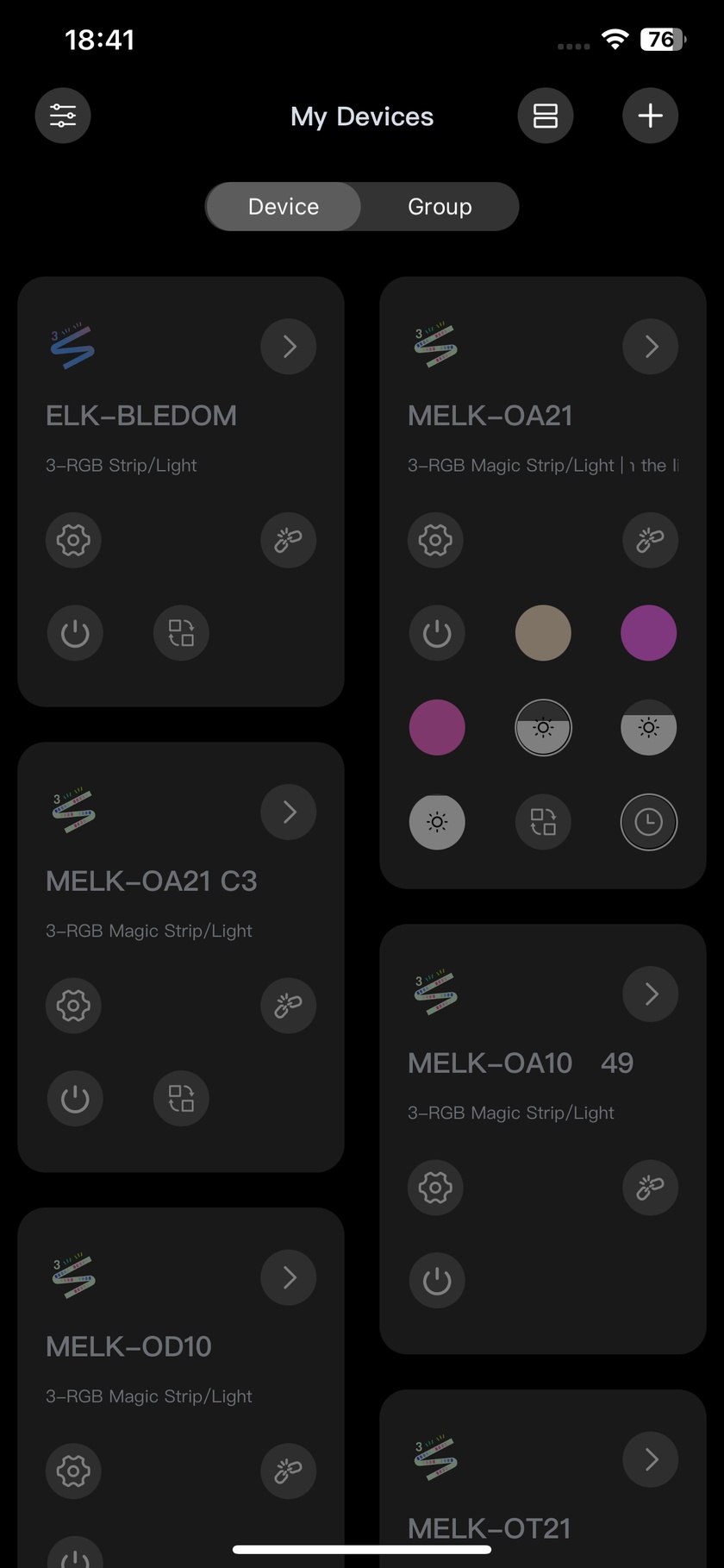
- Open the device list and tap the add button. Choose to add a device; the same menu also adds a group.
- Check the connection indicator on the device panel to confirm the device is connected.
- Use the power button to switch the light on or off. The quick panel also carries brightness, colour and effect controls.
- Open the edit menu to change device information or personalise the quick panel.
Each panel shows the device icon, name, category and a scheduled-on reminder when one is set. A long press on a blank part of a quick panel drags it to a new position.
The list defaults to two columns. The layout button switches between one and two columns, and the choice is saved. The device/group toggle changes the list below; the device list is shown by default when the app opens.
Each quick panel holds up to six brightness buttons, six colour buttons and six combined rhythm, scene or mode shortcuts. Connection behaviour is set under Settings.
Control a group together
Tap the add button to add a group, then use the device/group toggle to view the group list. Each panel shows the group name, icon and device count, with a scheduled-on reminder when one is set.
- The group power and adjustment controls act on every device in the group at once.
- A long press on a blank part of a panel reorders groups. The one-column/two-column switch is available here as well.
- The edit menu changes group information and customises the quick panel. Groups take the same limits: six brightness buttons, six colour buttons and six combined effect shortcuts.
Arrange the control panel
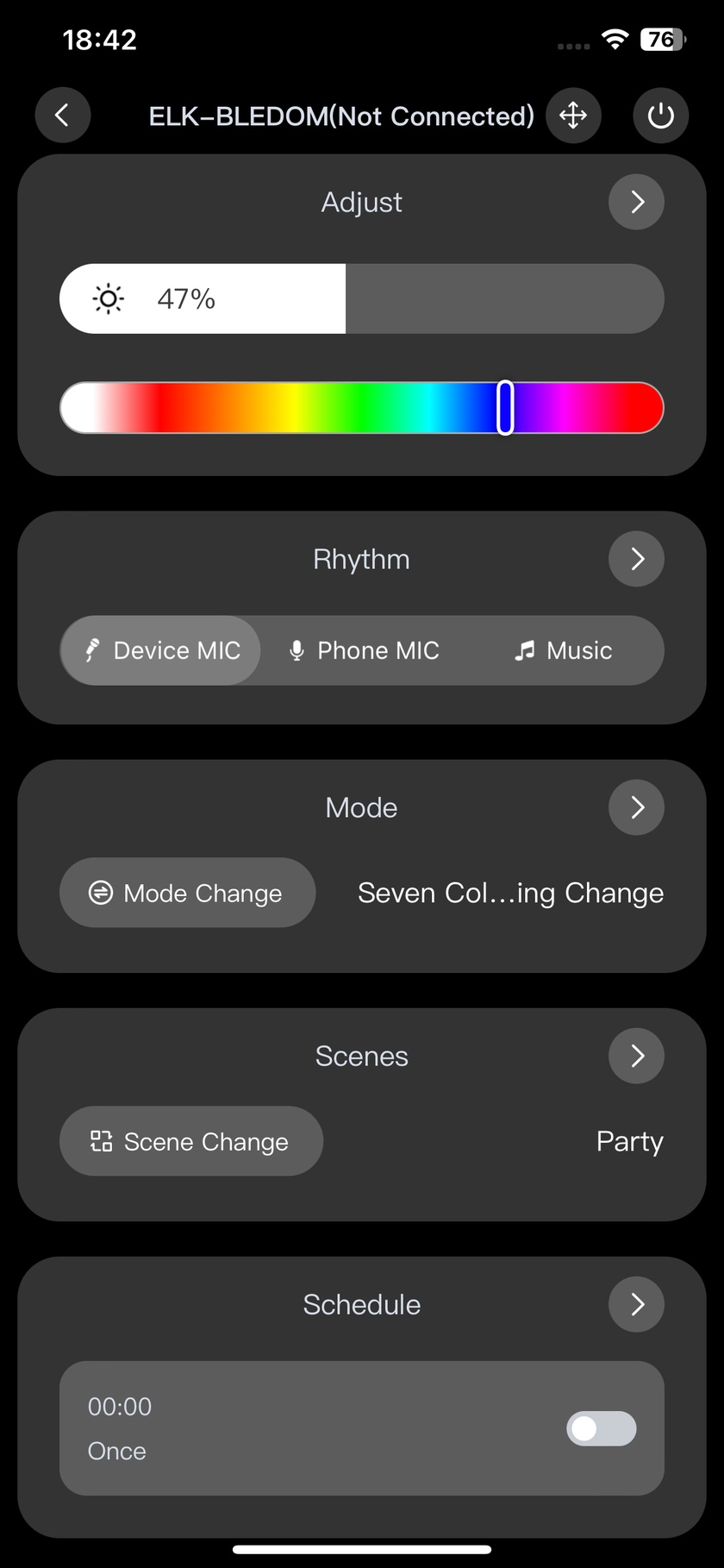
The control panel contains colour, rhythm, mode, scene and timer modules. The expand/collapse button, or a tap on a blank area of a module, opens or closes it. Scrolling vertically reaches the other modules.
- The move button changes the order of the modules.
- The power button switches the device light on or off; the back button returns to the home quick panel.
- The rhythm selector switches between external microphone, phone microphone and music.
- The mode and scene buttons switch effects; the DIY/built-in selector chooses a scene category.
- The collapsed normal timer shows the most recently configured schedule.
Adjust colours, rhythm, modes and scenes
Colours
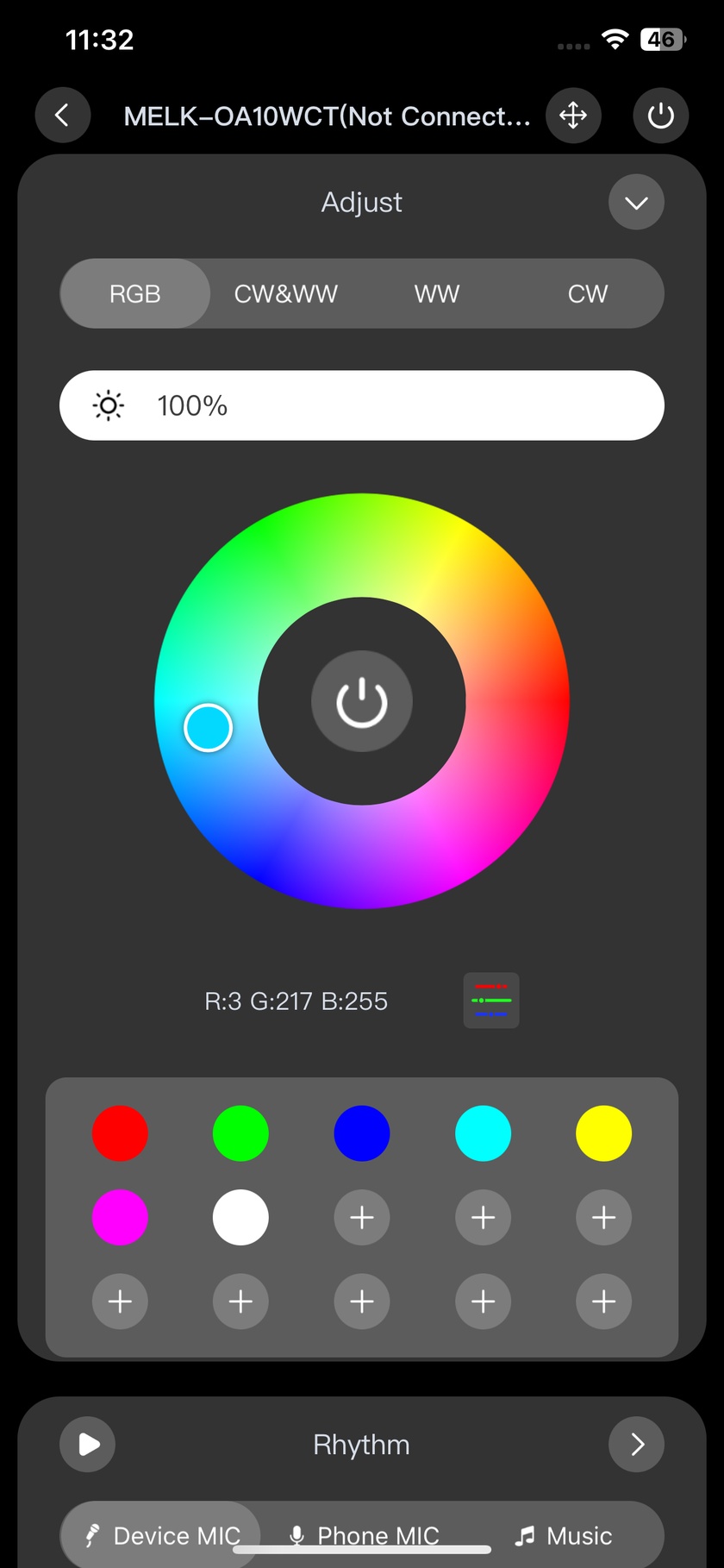
- Switch the palette type, then tap or slide on the colour wheel to choose a colour.
- Tap the RGB selector to enter colour values directly.
- Choose a common preset or a custom colour, then tap or slide the brightness control to set the light level.
Music and microphone rhythm
- Choose external microphone, phone microphone or music as the rhythm source. External microphone means the microphone inside the controller; once it is selected the phone can leave the room.
- Select a rhythm style.
- Adjust sensitivity by tapping or sliding its control, watching the level indicator rather than the lights.
Music mode plays a file from the phone's own library and cannot follow a streaming app. The three sources, and how to tune the controller microphone, are compared in music sync modes.
Modes and scenes
Mode categories include Basic, Open/Close and Flow. Favourites holds the modes saved so far. A long press on a mode reorders it or adds it to Favourites; effect speed and brightness are adjusted below the list.
The DIY/built-in selector switches between custom and built-in scenes. A long press on the scene list changes its order.
Set timers
- Open the timer module and tap the time to open the time picker.
- Tap Repeat to choose the weekdays on which the schedule runs.
- Turn on the timer switch. A schedule is active only while its switch is on.
Normal timing shows the most recently set schedule when the module is collapsed. Advanced timing schedules light power, colour, rhythm, modes and scenes.
Customise colour and brightness shortcuts
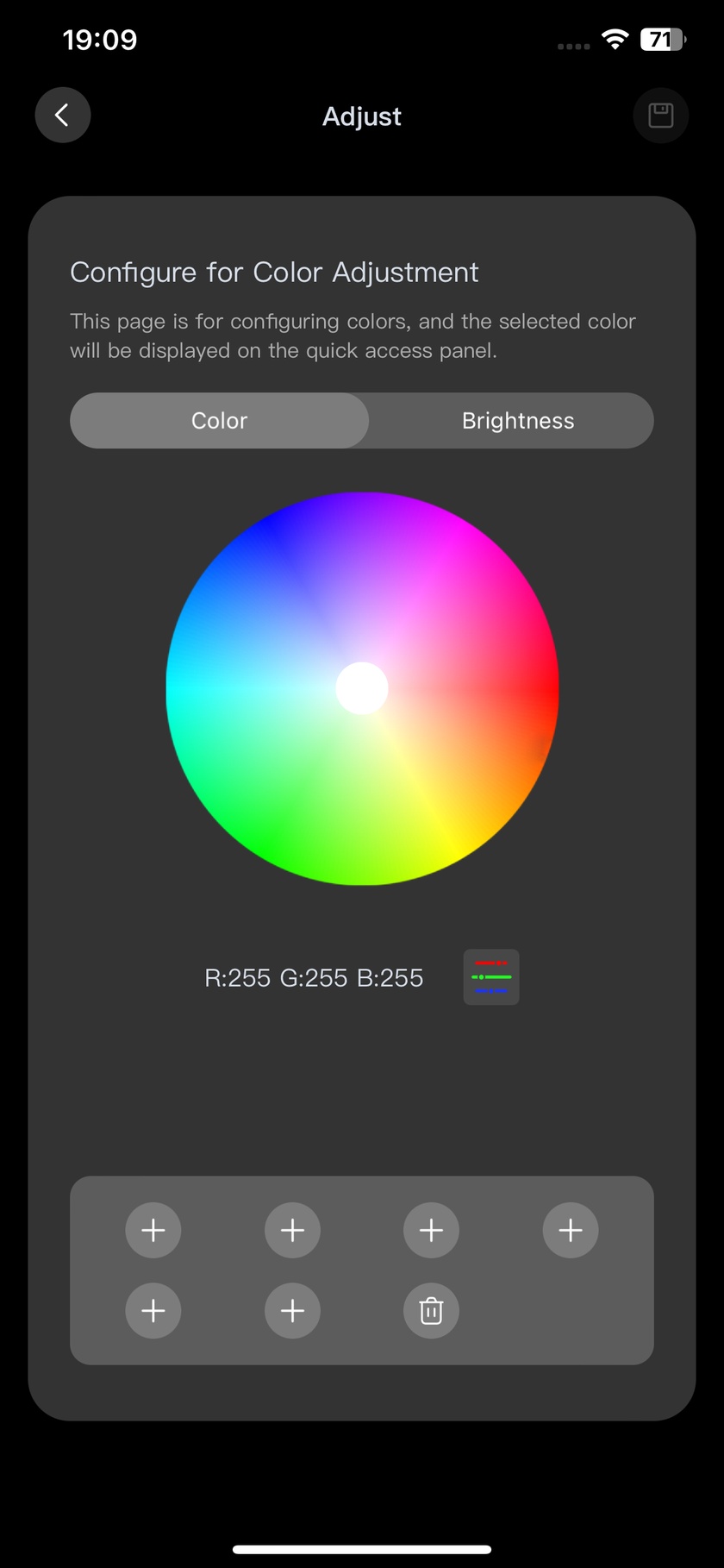
- Open the quick-panel colour configuration and switch between colour and brightness configuration.
- For a colour, use the colour wheel or open the RGB editor to set the values. Select a custom colour and use Delete to remove it.
- For brightness, slide the brightness bar to choose a level.
- Tap Save when finished. Back returns to the home page.
The quick panel holds up to six custom colour buttons and six brightness buttons.
Configure three-in-one shortcuts
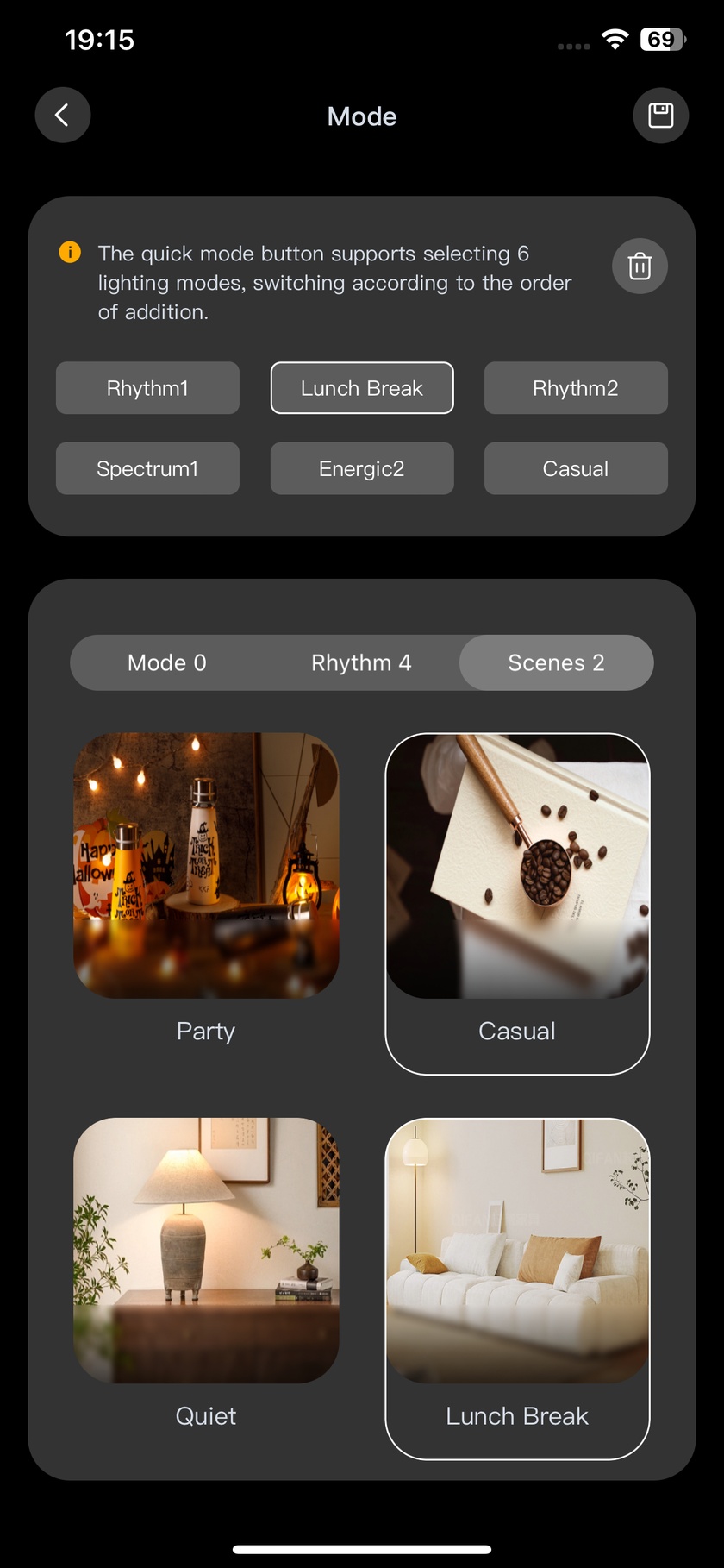
- Open three-in-one configuration from quick-panel personalisation.
- Switch between Mode, Rhythm and Scene. Each category shows its current selection count.
- Select the effects to include. In the Mode category only favourited modes are offered; multiple selections are allowed.
- Review the selected functions, remove unwanted ones with Delete, then save.
The combined number of rhythm, scene and mode functions is limited to six. Saved selections appear on the quick panel as three-in-one shortcuts.
Connection and app settings
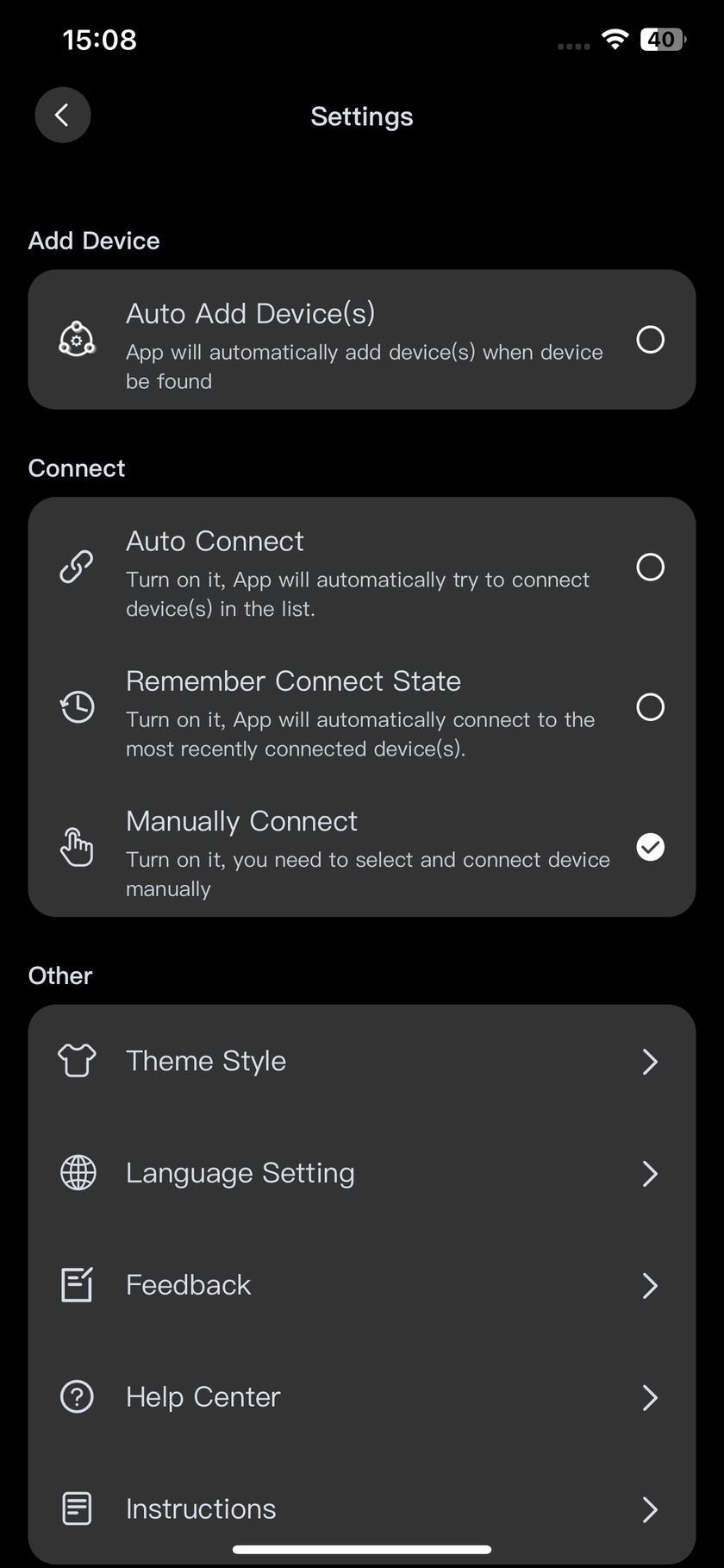
Settings, opened from the home page, sets connection behaviour:
- Auto add devices: discovers devices and adds them to the device list while the app is running, even outside the device management screen.
- Auto connect: connects to devices automatically.
- Remember connection: keeps trying to restore a connection unless it was deliberately disconnected.
- Manual connection: connects devices by hand.
The same screen sets the theme and app language. Problem Feedback describes an issue and sends it by email; Help Centre and Instructions give further guidance; the User Agreement and Privacy Policy are on the same page. The settings screen carries no pin-sequence option, so a strip whose channel order is wrong is corrected at the connector, as described in wrong colours and line sequence.
Common problems
| What happens | Cause | What to do |
|---|---|---|
| Device list stays empty, no error | Wrong app, or the Bluetooth / nearby-devices permission was denied | Check the category map first; grant the permission in the phone's settings for the app, not inside the app |
| Light appears, then vanishes from the list | A phone that paired before has reclaimed it; most of our controllers accept one connection at a time | Close the app on the other phone |
| Connects, then drops within seconds | Too far for the first handshake | Pair within a metre or two of the light, then move away |
| Music mode does nothing with Spotify or YouTube | Music mode plays only files in the phone's own library | Use external microphone, or phone microphone if the controller has no built-in microphone |
| External microphone is missing from the rhythm selector | The controller has no built-in microphone | Use music or phone microphone |
| Lights flicker between tracks | Sensitivity too high; the controller triggers on conversation, air conditioning or a fan | Lower sensitivity until the level indicator settles when the music pauses |
| Lights barely move, or only on the loudest peaks | Sensitivity too low, or the controller is far from the speakers | Raise sensitivity first; if that is not enough, the microphone's position is the limit |
| Level indicator stays flat in a microphone mode | Microphone permission denied on the phone | Grant it in the phone's settings for the app |
| A timer never fires | Its switch is off | Turn on the timer switch; a schedule runs only while its switch is on |
| A shortcut will not save | The panel already holds six colour, six brightness or six combined shortcuts | Delete one before adding another |
| Brightness responds but red comes out green | Channel order between strip and controller; the settings screen has no pin-sequence option | Swap the two offending wires at the connector, as in wrong colours and line sequence |
The permission table for iPhone, Android 12 and earlier Android, and the reading of each failure, are in pairing a light for the first time.
Privacy
LightsPlay talks to the controller over Bluetooth with no account or login. It asks for Bluetooth permission (nearby devices on Android 12 and later) in order to scan, and for microphone permission only when a microphone rhythm mode is selected. The app's own privacy policy and user agreement are in its Settings screen and on its store listing; the site privacy policy covers the guide pages on elklotus.com, not the app.
Questions about a specific light of ours? Contact us.